
 Get GNU / Linux
 News Feed
 Blogs
Blogs Event Photos
 Screen Shots
 Polls
Polls Popular Content
 Members
 Search
 Wall Papers
GNU/Linux Command Line session (1) :
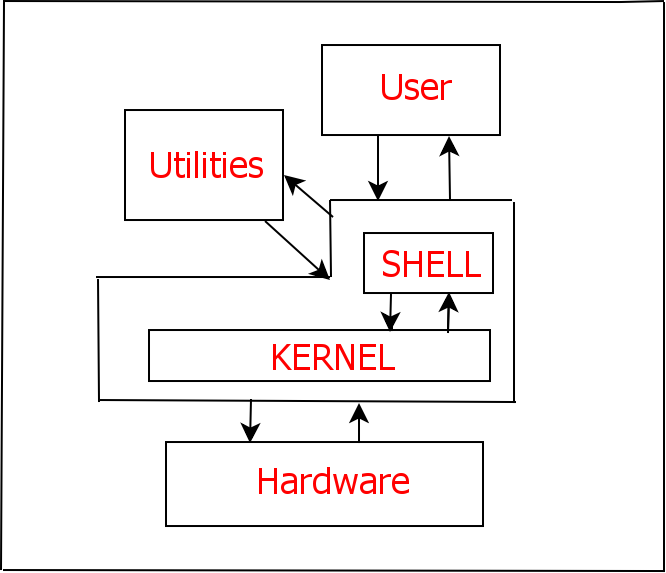
In GNU/Linux everything is a file ... All configurations have files Using the text mode on GNU/Linux Operating System is pretty light .. The following figure shows how does the system work on your GNU/Linux Operating System ( User - Utility - !Shell - Kernel - Hardware )
We have two types of Terminals :
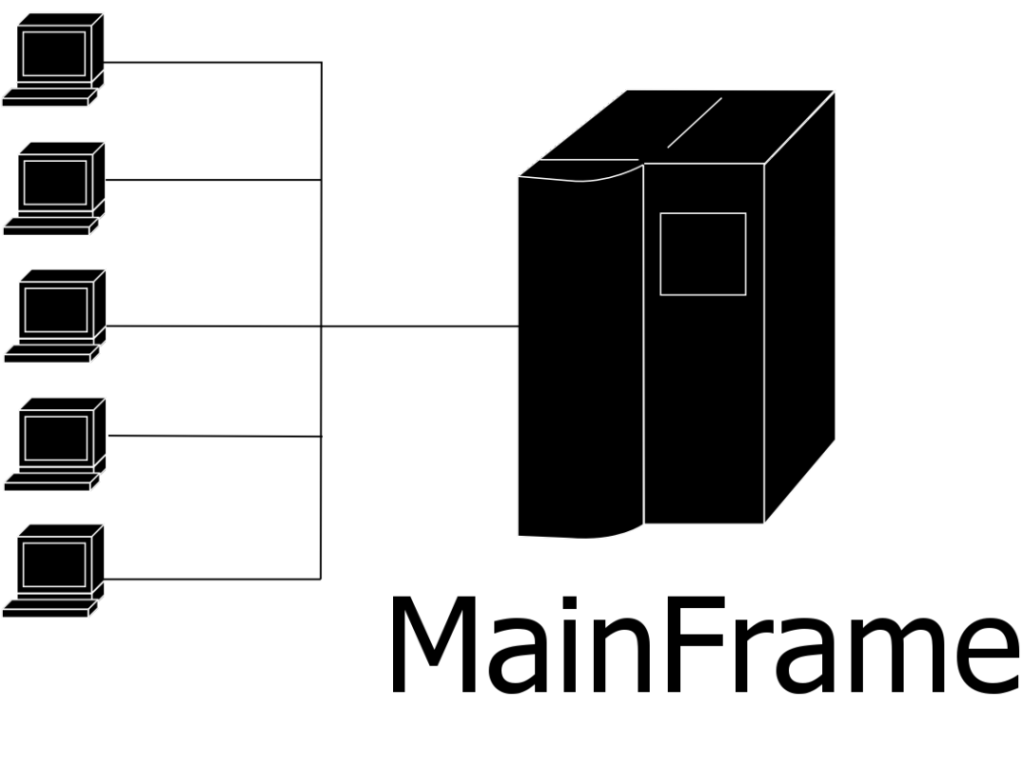
- Virtual Terminal ---> cause there is no other machine ( as in figure 2 ) " A mainframe with terminals "
2 -Terminal Emulators ( Psuedo ) ---> from the GUI ( Graphical User Interface )
tty , pts :
try using the command tty from any GUI terminal ( psuedo ) , most propably you'll get something like : /dev/pts1 or /dev/pts now use the terminals through Alt+Ctrl+F1 .... F6
The general form of any command is like :
[] == argument
$ls -la
$ls –list
$ls --almost -list
$ls -h!( h : for human readable )
ls -k is your friend ..
$man -k
What manual page do you want?
usage of man -k is something like :
$man -k kernel
$man -k copy
$man -k delete
so you can get use of it when you don't know the specific command to get it's manual directly like
$man cp( the copying command )
$man mv( the moving "deleting command - or renaming )
man is the short name of manual and you can use the command info as well which is a documentation browsing system
- ___/
- |
- |___/bin
- |
- |___/boot
- |
- |___/dev
- |
- |___/etc
- |
- |___/home
- |
- |___/initrd
- |
- |___/lib
- |
- |___/lost+found
- |
- |___/media
- |
- |___/mnt
- |
- |___/opt
- |
- |___/proc
- |
- |___/root
- |
- |___/sbin
- |
- |___/srv
- |
- |___/sys
- |
- |___/tmp
- |
- |___/usr
- |
- |___/var
Old School ASCII Graphics ;)
the famous command cd
$cd .." Up "
$cd -" Back"
Touch command ..
$touch oct-{first,second,third,fourth}-{1,2,3,4,5,6,7}
$ls oct*
$ls oct-fourth*
for more information about the “ touch “ command
$man touch;)
cp ( the copying command ) cp OPTION?... SOURCE DEST cp OPTION?... SOURCE... DIRECTORY
$cp -F( F: Force )
$cp -R( R: Recursive )
$cp -rf( recursive and force )
pwd : print working directory
$ pwd
/home/slacker
some other commands you may find it usefull ..
which :
shows the full path of (shell) commands.
$which mozilla
/usr/bin/mozilla
whereis :
whereis locates source/binary and manuals sections for specified files
$whereis mozilla
mozilla: /usr/bin/mozilla /usr/lib/mozilla /usr/local/mozilla /usr/share/man/man1/mozilla.1.bz2
who :
tells who is logged on
whatis :
whatis searches a set of database files containing short descriptions of system commands for keywords and displays the result on the standard output. Only complete word matches are displayed.
$whatis mozilla
mozilla (1) - a Web browser for X11 derived from Netscape Communicator
whoami
print efictive userid same as id -un
$whoami
slacker
$id -un
slacker
env print environment values try it on your machine cause the result is long to be copied in here ..
echo : display a line of text
$echo $SHELL
/bin/bash
$echo $PATH
/usr/bin:/bin:/usr/bin:/usr/local/bin:/usr/X11R6/bin/:/usr/games:/home/slacker/bin
$echo GO $USER
GO slacker;)
$echo DJ KING IS A $USER
DJ KING IS A slacker= )
$echo YOU NEVER KNOW == MohammedSameer
YOU NEVER KNOW == MohammedSameer
GNU/Linux is fun .. isn't it ? ;)
Permissions :
ls -l
you'll find the following for an example :
-rw-r--r-- 1 1000 users 366481 Jul 24 19:59 tls1.4.1-linux-x86.tar.gz
drwx------ 5 acidtears acidtears 8192 Aug 18 01:32 tmp/
-rw-r--r-- 1 acidtears acidtears 4665344 Aug 2 23:41 Usher_vs_Bee_Gees_Stayin_Yeah.mp3
drwxr-xr-x 5 acidtears acidtears 56 Aug 17 08:23 Wireless-NIC/
the first part on the left is called “ Permissions “ 10 charachters can be divided into three sections
for an example : -rw-r—r-- in learning these permissions first of all we must divide them into the 3 parts i have just told you about -|rxw |r-- |r--
1 2 3
the first - means regualar type ( other types such as -d ( directory ) or c ( charachter device )
r : read
w : write
x : execute
- user ( who has created that file/directory )
- group
- anyone else ( others )
in the same example we can notice easily that the user (1) can read (r) , write (w) and execute(x) where the group and others can only read (r)
to change these permissions we use the command line “ chmod “
we can do that using two methods
$chmod u -/+ rwx
$chmod g -/+ rwx
$chmod o -/+ rwx
where (u)ser (g)roup (o)thers
we can change the permissions in an easier way using numerical numbers as i said earlier the attributes are divided into three parts
r w x | r w x | r w x
4 2 1 | 4 2 1 | 4 2 1
say that we have a file that we want to make it readable , writable and executable for the user , !executable by the group , readable and writable for the others
user | group | others
r w x |r w x | r w x
4 2 1 0 0 1 4 2 0
add every section of the 3 and it should give a number of 3 patterns in the end
user = 4+2+1 = 7
group = 0+0+1 = 1
others = 4+2+0 = 6
then simply the command will be
$chmod 716 testfile
