 Get GNU / Linux
 News Feed
 Blogs
Blogs Event Photos
 Screen Shots
 Polls
Polls Popular Content
 Members
 Search
 Wall Papers
What is IRC?
IRC is a text based chatting protocol. You as a user chat through what is called IRC client. The client is a program installed on your system and connects to an IRC network. A network is a group of servers connected to each other to manage the exchange of messages. Users connected to the same network can chat together even if each is connected to a different server as long as these servers belong to the same network. Each network has a group of what is called chat rooms or channels reaching to thousands of channels. If one join a room he'll be able to chat with all those who joined the same room in a conference fashion. As complicated as it might sound, it's actully very easy to use. Just bare with us to the end of this Howto.
How is it different than ICQ, MSN Messenger and Yahoo! Messenger?
When using any of the previously mentioned IM protocols you probably chat with individuals in private conversations. In order to start a conversation someone you must know his ICQ number/ Hotmail email addresss / Yahoo! email address. With IRC its different, inorder to start a conversation you must know the room/channel you want to chat in. In the same way that you can search for individuals to chat with on (for example) ICQ , you can search for channels with topics of your interest to join on IRC. To wrap things up, previously mentioned protocols are used mainly for private conversations yet they support group chat rooms chatting, IRC on the other hand is mainly used for group chatting yet it supports private conversations.
Why should I bother?
IRC is a very popular way of asking for help concering FOSS. Forums are popular too but with forums you don't get real time response from the others. In an IRC channel you can ask a question and several users could walk you through your problem as you feedback them with your progress. The only drawback of such a method is that it's not publicly documented. Meaning that when you use a forum for asking about a specific problem others could later face the same problem , search the web for an answer and benefit from the replies you got. This is not the case with IRC. That's why you should be patient and polite when asking a question on IRC because many questions are asked over and over again making some people get bored answering them. IRC is also a way for developers coordinate they work and its the the preferred way for FOSS fans to just hang out and socialize.
Ok, What do I need?
You need to have an IRC client installed on your system. One that we recommend is XChat
- Download and install the latest GTK+ Runtime for windows
http://www.silverex.info/download/gtk2-runtime-2.4.14-041220-ash.exe
- Download and install Xchat for windows
http://www.silverex.info/download/xchat-2.4.1.exe
- If the provided links don't work visit
http://www.silverex.info/download/
Now what?
Connecting to a Network
- Start Xchat
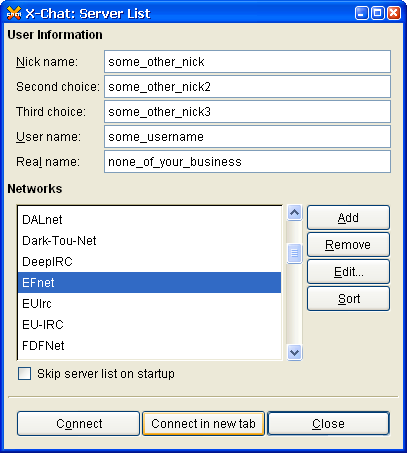
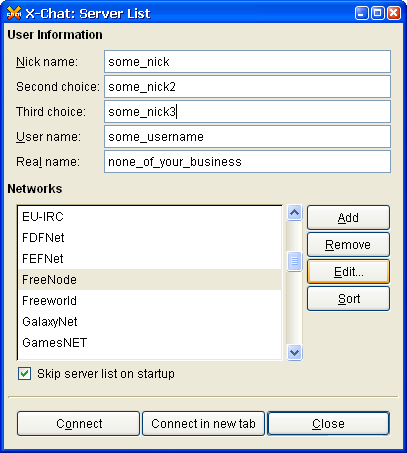
- You will be greeted with this window named Server list window. Choose a nickname for yourself, scroll down to Freenode and press the connect button

- You'll get the xchat main window. Wait for a while till you get connected to a server.
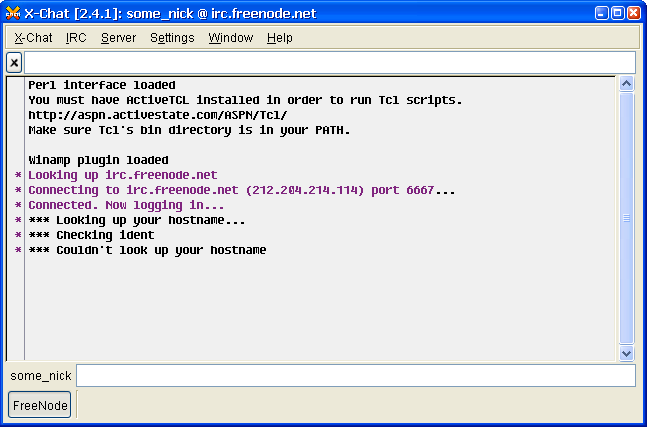
- Now you're connected to the Freenode network.

Joining a channel
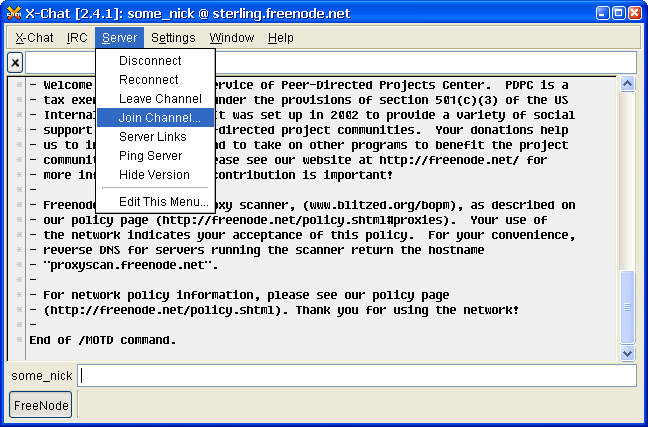
- Its time to join a channel. Choose "Join Channel" from the "Server" menu in the menubar.
- type #eglug and press OK
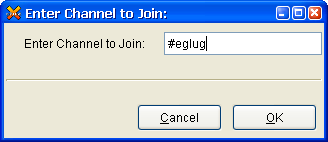
You could just type /join #eglug in the main xchat window instead of the previous 2 steps
Chatting basics
- Now you'll chatting in #eglug. To grab the attention of the user you're talking to type the first letter of his nickname then press tab to autocomplete his nickname.
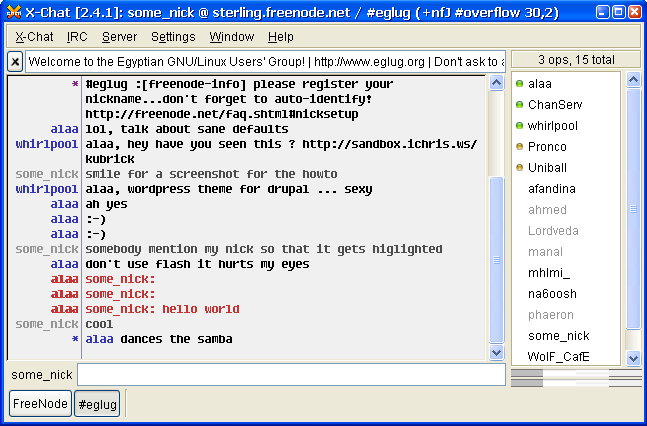
- In the previous screenshot alaa typed "s" and then pressed Tab, XChat auto-completed "some_nick" and as you can see some_nick got a highlighted message in the eglug channel tab.
- To privately send a message to a user in the channel, say to alaa whose dancing is annoying you type:
/msg alaa stop dancing
Connecting to another network
- To connect to another network, press "X-Chat" in the menubar then choose "Server list" or just press Ctrl S.
- Type a nickname, you can use a totally different nick than the one you used to connect to Freenode. Choose a new network to connect to, say EFNet. Press on the "connect in new tab" button.
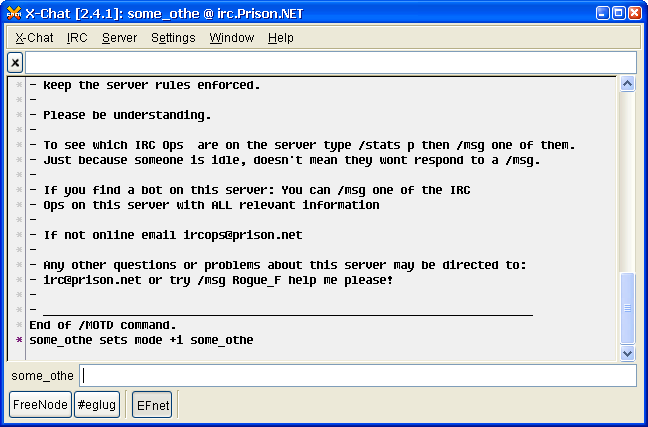
- You are now connected to two networks, namely Freenode and EFNet.
Searching for a Channel
- You joined #eglug on Freenode because you already know it, but you don't know any channels on EFNet. Press "Windows" then "Channel List".

- You'll get the following window, press "refresh the list" and after a minute you'll get a list of thousands of channels.
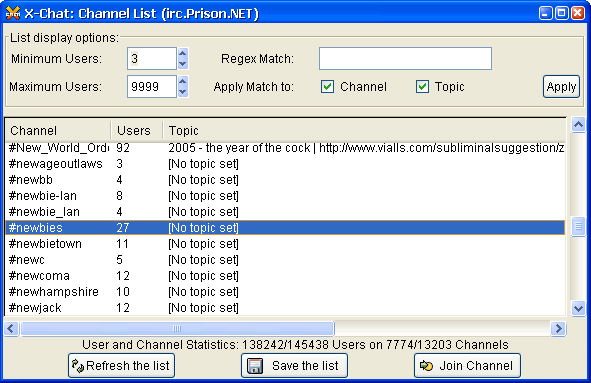
- Highlight any channel to join and press "Join Channel". I chose #newbies. Now you are chatting in two different channels on two different networks with two different nicknames. Ofcourse you can join several channels on the same network.

Registering and Auto connecting
- To make things easier on you the next time. Go to the Server List, highlight Freenode , check the checkbox named "Skip server list on startup" and press Edit.
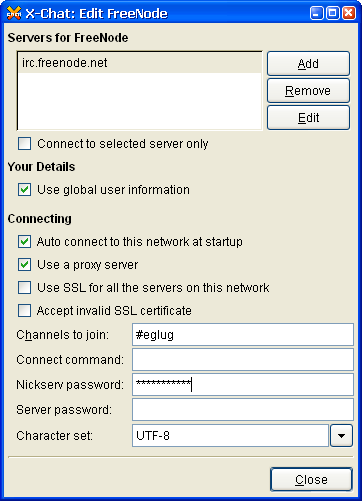
- You'll get the following window. Check the checkbox beside "Auto connect to this network at startup" , type #eglug in the text box beside "Channels to join:" and choose UTF-8 from the "Character set" dropmenu in order to type and view Arabic messages.